How to Connect Your AI Assistant to TaxProExchange (Step-by-Step)
A complete walkthrough of TaxProExchange's new MCP server: what it is, how to connect Claude or ChatGPT to the verified tax pro directory in under five minutes, example prompts, and what it will never share.
How to Connect Your AI Assistant to TaxProExchange
You already ask your AI assistant to draft emails, summarize notices, and explain basis adjustments. Now you can ask it something more useful: who can actually help with this.
TaxProExchange's verified directory is now reachable straight from Claude Desktop, Claude Cowork, or any MCP-compatible AI client — no tab-switching, no manual filtering, no scrolling a search page. This is a manual, not a pitch: what the connection is, exactly how to set it up, what it answers well, and what it deliberately will not tell you.
What You're Connecting To
It's called MCP — Model Context Protocol, the open standard Anthropic introduced that lets an AI assistant plug into outside software the way a USB-C port charges a laptop, a phone, or a headset. Instead of your assistant guessing, it queries the real thing.
TaxProExchange's MCP server is read-only and scoped to exactly two things:
search_professionals— search the verified directory by specialty, software, state, credential type, or whether someone's accepting work. Returns at most 10 ranked matches, never a full list.get_professional— pull the public details for one professional you already have a link to.
That's the entire surface. There's no SQL, no write access, no bulk export, and — this is the part firms ask about first — no email addresses or phone numbers, ever. Every result is a name, credentials, specialties, and a link to their public profile. Contact happens on TaxProExchange, the same as it always has.
It's a Firm Workspace feature — available to any paid firm account, not billed separately.
Setup (Takes About Five Minutes)
Step 1 — Generate your API key
From your firm's Settings page (you'll need to be a firm admin with an active subscription), find "Connect your AI assistant" and click Generate API Key. The key is shown exactly once — copy it somewhere safe before you navigate away. If you ever need a new one, you can rotate it from the same screen; the old key stops working the instant you do.
Step 2 — Add TaxProExchange as a connector
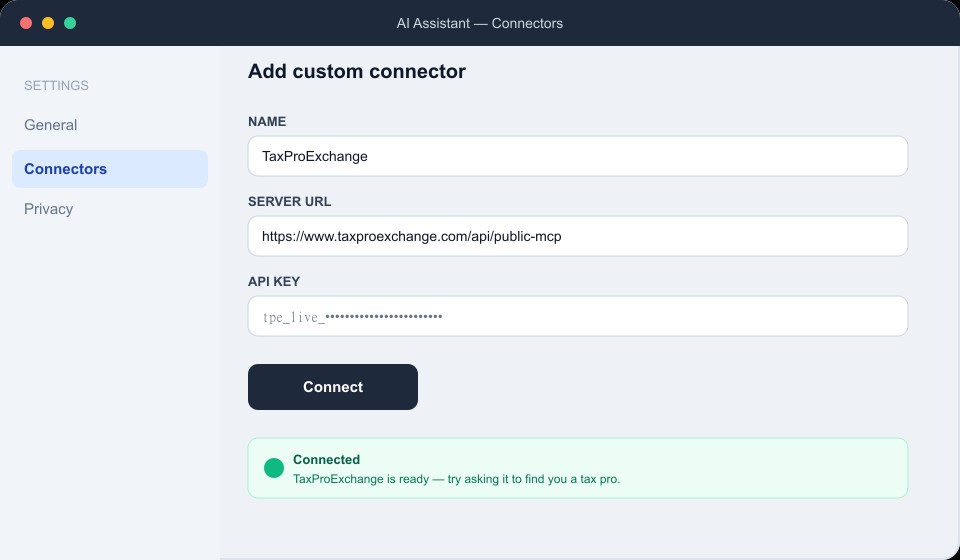
In your AI client's connector settings, add a custom connector pointing at:
https://www.taxproexchange.com/api/public-mcp
The mockup below shows the shape of this screen (yours will look like whatever AI client you're using — this is illustrative, not a literal screenshot of any one product):
Step 3 — Paste your key and ask away
When prompted for authentication, paste the key from Step 1. That's it — no OAuth flow, no separate login. Your assistant now has a live line into the verified directory.
What to Actually Ask It
The point isn't "search," it's ask the way you'd ask a colleague who knows everyone. A few that work well:
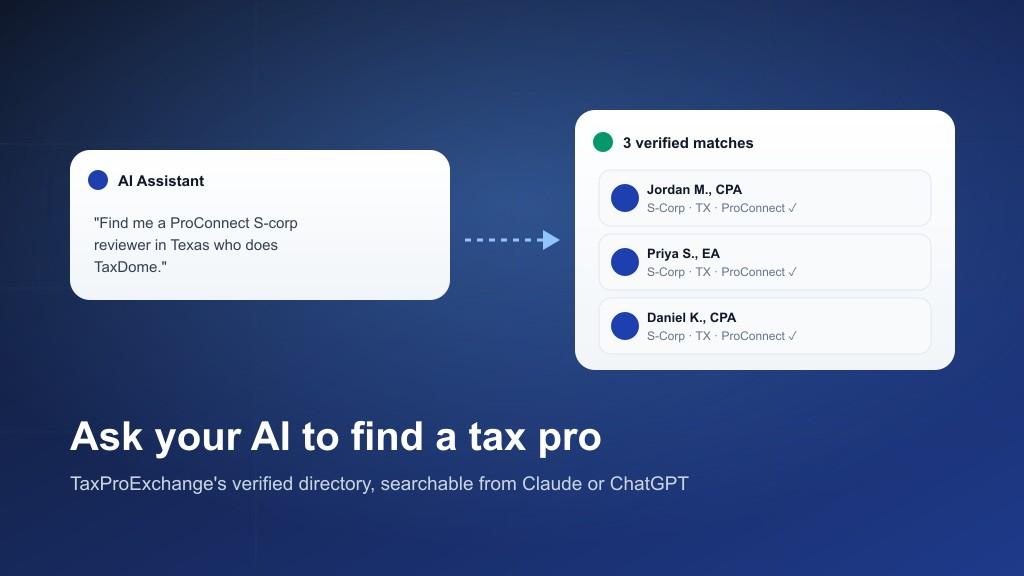
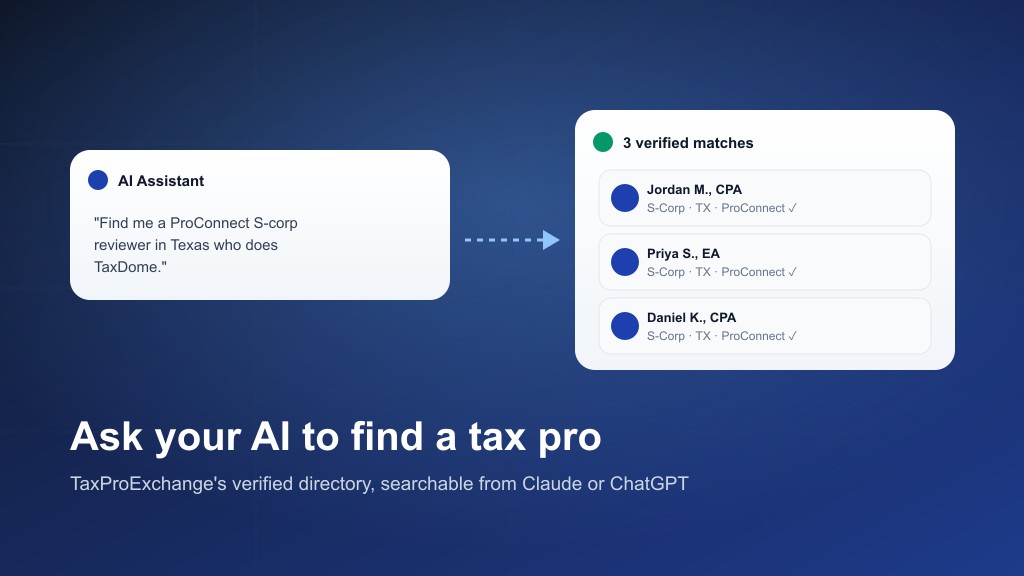
- "Find me a ProConnect S-corp reviewer in Texas who does TaxDome."
- "Is there anyone verified who handles crypto tax and is currently accepting work?"
- "I need an EA who works multistate — who's available?"
- "Who on TaxProExchange specializes in IRS representation in California?"
Here's roughly what that second one looks like end to end:
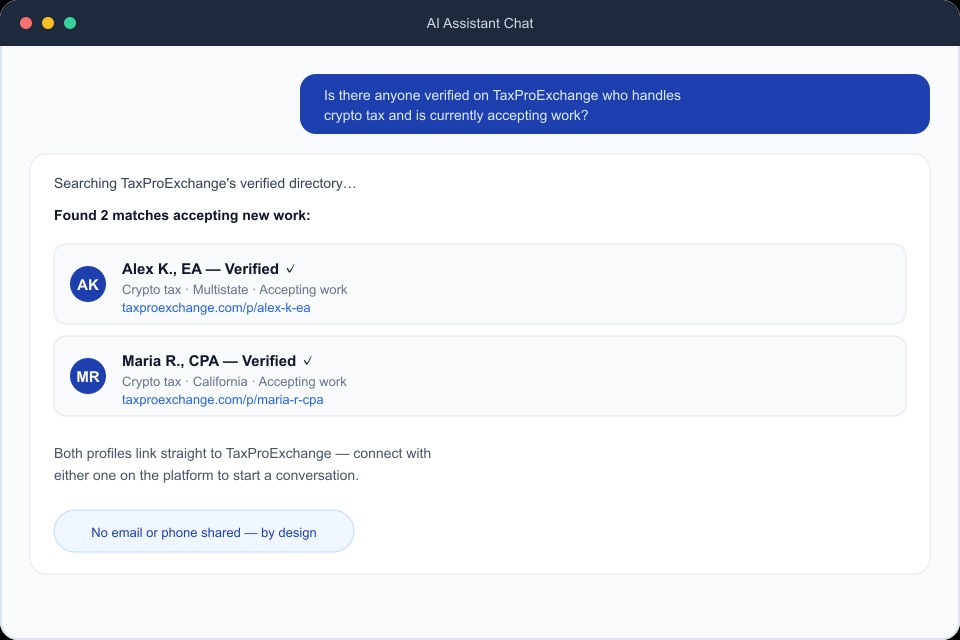
Notice what's not in that response: no email, no phone number, no way to reach either professional except through the TaxProExchange link. That's not a limitation we're planning to lift — it's the design. The directory is TaxProExchange's core asset, and this connection is built to be useful for finding the right few people, not useful for harvesting the list.
What It Won't Do (On Purpose)
A short, honest list, because "AI assistant with directory access" invites assumptions worth correcting upfront:
- It won't email anyone for you. No sending, no outreach, no automation beyond the search itself.
- It won't hand you more than 10 results. If more than 10 match your filters, you'll get a count and a prompt to narrow — never the long tail.
- It won't show you unlisted, unverified, or opted-out profiles. If a professional turned off discovery or hasn't been verified, this surface respects that exactly like the public directory does.
- It won't let you paginate through the whole table. There's no stable sort order to walk — results are capped and shuffled within the match pool on every call, by design.
- It can't reach anything else on TaxProExchange. This is a separate, narrow service from the rest of the platform — it has no path to account data, messages, billing, or anything behind your login.
FAQ
Does this cost extra? No. It's included with any paid Firm Workspace subscription.
Does my AI assistant see client data or my firm's private bench? No. It only sees what's already public on the directory — the same information anyone could find by browsing TaxProExchange's search page.
What happens if my subscription lapses? Your key stops working immediately. Access is checked against your subscription status on every single request, not on a delay.
Can I have more than one key? One active key per firm for now. Rotating replaces the old one instantly.
Which AI clients does this work with? Anything that speaks MCP over a remote HTTP connection — Claude Desktop and Claude Cowork today, with more clients adopting the standard regularly.
Try It
If you're on a Firm Workspace plan, your key is a few clicks away on your settings page. If you're not yet, the full setup guide and pitch live at taxproexchange.com/connect-ai, and plans start at $30/month.
The directory was always there. Now it answers when you ask.